Showing posts with label FI - Basic Settings. Show all posts

Define Comapany

Define Company:

Creation/Define company  is mandatory activity in the customizing project.
Enter Transaction code SPRO in the command field
In the next screen Select SAP reference IMG
In next screen Display IMG follow the menu path
SAP Customizing Implementation Guide -> Enterprise Structure -> Definition-> Financial Accounting -> Define Company
In the next Screen
1)    Press New Entries

In the next Screen Enter the Company Details :
1.        Enter a unique Company Id for the Company within your corporate group
2.        Enter the Company Name
3.        In the Detailed Information Section Enter the Company Address details such as Street , PO Box, Postal Code, City
4.        Select Country code for country the company is established
5.        Select Default language for the Company for Print forms and  Default Texts
6.        Select a Local Currency for the Company

After completing all the required information ,press save
Enter your customizing request number
and your company is created.

This is the end of step 1.


Define Company Code & Assign Company Code to Company

Define Company Code:

Enter Transaction code SPRO in the command field

In the next screen Select SAP reference IMG

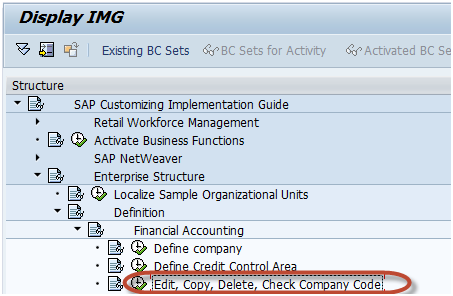
In next screen Display IMG follow the menu path
PATH: SAP Customizing Implementation Guide -> Enterprise Structure ->Definition->Financial Accounting->Edit, Copy, Delete, Check Company Code


In the next screen, select activity –  Edit Company Code Data

Edit Company code Data

In the Change View Company code screen
Select New Entries


In the Next Screen Enter the Following Details
1.     Enter  your Unique Company Code Number
2.     Enter Company Name
3.     In the Additional Data section Enter City
4.     Enter Country for the Company
5.     Enter Local Currency
6.     Enter Default Language


Click Address Details button on same screen


Enter Address Details for the Company this will appear in print forms
1.     In the Name Section Enter Title and Company Name
2.     In the Search Term section Enter Search term 1 and 2
3.     In the Street Address section enter street, postal code, city, country
4.     In the P O Box Address  section Enter PO Box and Postal Code
5.     In Communication Section Enter appropriate details


After Completing this information Press Save  
  and Enter your Change Request number.


You have successfully created a new Company code.
Assign Company Code to Company
In the SAP Reference IMG Select the Menu path
PATH: SAP Customizing Implementation Guide ->Enterprise Structure->Assignment->Financial Accounting->Assign Company Code to Company

In the Next Screen Enter the unique Company ID against the Company Code you
Want to assign to this Company.

Press Save   and Enter the Customizing request Number

You have assigned the desired Company code to the Company
This is the end of the step 2.


Documents & Document Type

Documents: Posting the business transaction into the system the document will be created and saved in the database. They are two types
1. Original Documents: Receipts, Invoices, Checks, Bank Statements.
2. Processing Documents: Accounting Documents, Recurring Doc, and Sample Doc.
** Every Document will consist of one document header and at least two and max 999 line items.
  • The document header contains the data that is valid for the whole document.
E.g.: Doc date, Doc type, Company code Etc.
Document Type: Doc type is nothing but voucher containing line items. Several business transactions can be identified within a particular document type.
            a. It controls document number ranges.
            b. It controls the header part of the document
            c. It controls the line item level of the document.
            d. It controls the posting to accounts whether to vendor, customer or GL accounts.
            e. It differentiates between business transactions.

            DR     Customer Invoice             18
            DZ      Customer Payment          14
            DG     Customer Credit memo    16
           
            KR      Vendor Document          19
            KZ       Vendor Payment                    
            KG      Vendor Credit Memo     17
           
            AB      General Document          01
            SA       GL Account Document   01

            RF       Invoice Receipt
            WA     Goods Issue
            WE      Goods Receipt
            WI       Inventory Document
            X1       Recurring Entry Doc.
            X2       Sample Document
           
            ZP       Payment Postings
            ZV       Payment Clearing
** Number Range Intervals are two types
a.       Internal: The system will generate the numbers for documents

b.      External: The user has to give the numbers for documents


Holding a Document: The hold documents are used when the complete information regarding the transaction is not available. E.g. Bank Charges, Cost Center. It does not update any account balance. Program RFTMPBLU.

Parking Documents: Parked documents can be check, completed and posted at later date by getting the approval from the senior employees. When the document is parked the data will not be updated.
            Data from parked documents can however be used for evaluations by the system. For e.g.  Amounts from parked invoices can be used for the advance return for tax on sales and purchases. Using payment requests, parked invoices can be paid punctually and without loss of discount. We can change currency, co. code, amounts also.
Reference Documents:

Account Assignment Model (AAM): A reference for document entry that provides default values for posting business transactions. An account assignment model can contain any number of GL account items and can be changed or supplemented at any time. In contrast to sample documents, the GL account items for account assignment models may be incomplete.

Sample Documents: Sample documents are template for original/Accounting document. Sample document as reference documents entered specifically for posting with sample documents. Sample documents do not update transaction figures. They serve merely as data source for an accounting documents, sample document can be enhanced or changed.
Sample documents hold a special number range. I.e. X2.

Recurring Entries: Recurring entries are business transactions that are repeated regularly such as rent and insurance. The following data never changes in recurring entries Posting Key, Account, and Amount.
            The cross company transactions cannot be posted with the recurring entry program. Number range intervals X1.

Accrual/Deferral Documents: This is replacement ot sample documents. There are practical difficulties in sample documents they are

            1. Employee difference (Payment, acct maintain)
            2. Accts difference (Amount)
            3. Timing difference. In all branches may not make payment at same time

Currencies

Currencies: A company code can have 3 currencies in total. One which is called the local currency i.e. company code currency and 2 parallel currencies can be configured. When we do that the systems has the flexibility to report in the different currencies.
            In case of 2 currencies are configures. There is no need for an additional ledger. In case the third parallel currency is configured and is different than the second currency type, you need ot configure additional ledger.

Parallel Currencies:
1.      Group Currency: Group Currency is the currency which is specified in the client table or which is to be entered there. It is used when the company spread in different countries, in order to take the statements in one currency finally.


2.       Hard Currency: Hard currency is a country-specific second currency which is used in countries with high inflation. When their currency has the high inflation effect in their country, then they use some other currency to overcome from this problem. That currency is called hard currency.
3.      Index-Based Currency: Index based currency is a country specific fictitious currency, which is required in some countries with high inflation for external reporting e.g. Tax returns.
Global Currency: Global comp

Currencies

Currencies: A company code can have 3 currencies in total. One which is called the local currency i.e. company code currency and 2 parallel currencies can be configured. When we do that the systems has the flexibility to report in the different currencies.
            In case of 2 currencies are configures. There is no need for an additional ledger. In case the third parallel currency is configured and is different than the second currency type, you need ot configure additional ledger.

Parallel Currencies:
1.      Group Currency: Group Currency is the currency which is specified in the client table or which is to be entered there. It is used when the company spread in different countries, in order to take the statements in one currency finally.


2.       Hard Currency: Hard currency is a country-specific second currency which is used in countries with high inflation. When their currency has the high inflation effect in their country, then they use some other currency to overcome from this problem. That currency is called hard currency.
3.      Index-Based Currency: Index based currency is a country specific fictitious currency, which is required in some countries with high inflation for external reporting e.g. Tax returns.

4.      Global Currency: Global company currency is the currency, which is used for an internal trading partner.

General Ledger Account

General Ledger Account: GL account master record contains the data that always needed by GL to determine how account’s function. It controls the posting of accounting transaction and processing of posting data.
           
The GL account master record creation is divided into two parts:
1. Chart of Accounts Specific area: Acct. No., Acct name, Acct Group, P&l or
                                                         B/S. short and long text                                                                                                                                                                
           
2. Company Code Area:

a.       Control data: controls the account in company code.
b.      Account Currency: Currency in which account to be kept.
·         Local Currency is given then this allows to inter any currency in to this specific account.
·         Foreign currency given then only the posting into that account in that particular currency only allowed.
c.       Balances in Local Currencies: Set this indicator for clearing accounts to clear line items in various currencies with one local currency and without posting any exchange rate differences that may occur.
d.      Tax Category
e.       Posting without Tax allowed
f.       Reconciliation account for account type: if set this then when u post to the customer or vendors account automatically this account will be updated.
g.      Open Item Management: OIM is further reconciliation function. The items in an open item account are marked as open or clear. Open item management manages GL accounts on open item basis if u needs to check, for a particular business transaction, whether an offsetting posting has already been made.
Posting to these accounts represent incomplete transactions.
E.g. GR/IR Account. (Not OIM are bank accts, Reconciliation Accts.)
h.      Line Item Display: If we manage an account with line item display, u can display all items posted to the account that have not yet been archived.
i.        Field Status Group
j.        Sort Key: Use this key to specify the sorting procedure of line items to this account.
k.      Post Automatically: When this indicator is selected, only the system can post to this account based on the configuration in the account assignment table. If you select this indicator you cannot post the transactions directly to this account.  E.g. Inventory Accounts, Material variance accounts. Like some account we have to maintain on the basis of Automatic payment, interest accounts in f.50, and depreciation accounts, such type of account the entries has to be passed automatically, not directly we need to post. Such type of accounts in order to control not to post mistakenly by the clerks, we check this box.


Note: GL accounts can be created at three levels, they are 
                        1. Chart of Accounts Level
                        2. Company Code Level
                        3. Centrally, (Both areas in one step.)

Prerequisites prior to creating GL accounts:
            1. Edit COA
            2. Assign COA to Company Code.
            3. Account Groups     
            4. Retained earnings account
            5. Field status group

Creating GL Account Manually:
a.       We can create a master record in the chart of accounts and in the company code in one step
b.      We can create the COA area first, and then create the company code specific area in second step.

Tabs in GL Creation:
a.       Type/Description
b.      Control Data
c.       Create/Bank/Interest
d.      Key work/Translate (language info.)
e.       Information COA
f.       Information Company code

Necessary fields to be filled while creating GL:
a.       Account Group
b.      Specify whether P&L account or B/S Account
c.       Short text and long text
d.      Field Status Group

e.       Sort Key

Account Groups

Account Groups: Grouping or putting of same type and nature of accounts under one name or account is called account group. Account group determines which field you can configure on the GL master record. It is necessary to have at least two one for B/S and another one for P&L acct.
1. Number range intervals
2. Fields that are required to be entered while creating GL master. There are
                        Account Control
                        Account Management
                        Document entry
                        Bank/interest/details
                        Interest Calculation

                        Joint Venture.

Most Popular Posts